Streamer Replays With Copyright Music Sections Cut
 0
0
 0
0
Finishing a successful four-hour live stream is a satisfying moment for any digital creator. However, opening your dashboard the next morning only to discover red or yellow copyright claim bars across your saved Video-on-Demand (VOD) replay can instantly ruin the mood. Playing background music during a live broadcast frequently triggers automated digital fingerprinting algorithms on platforms like Twitch and YouTube.
When a copyright match occurs, streamers face an immediate technical choice: Do you mute the flagged audio segment, trim out the entire video clip, accept a revenue share, or re-configure your broadcasting software to prevent music from ever reaching your saved VOD files? Understanding how platform claims work and learning how to route multi-track audio in OBS Studio protects your channel from strike penalties while preserving your commentary.
Copyright claim policy types and their impact on your VOD
When automated detection engines identify copyrighted audio in your recorded broadcast, your creator dashboard logs a specific policy claim. Understanding what each status label means helps you determine the severity of the flag.
The difference between “Mute,” “Block,” and “Monetize” flags
Streaming platforms categorize audio claims into three primary operational tiers:
- Monetize / Revenue Share: The rights holder allows your video to remain public, but all advertising revenue generated by the VOD is diverted to the music publisher.
- Mute: The platform automatically silences the specific audio section containing the claimed song while leaving the video footage intact.
- Block: The most severe flag. The rights holder completely blocks the VOD from being viewed publicly, and repeated unaddressed blocks can escalate into account copyright strikes.
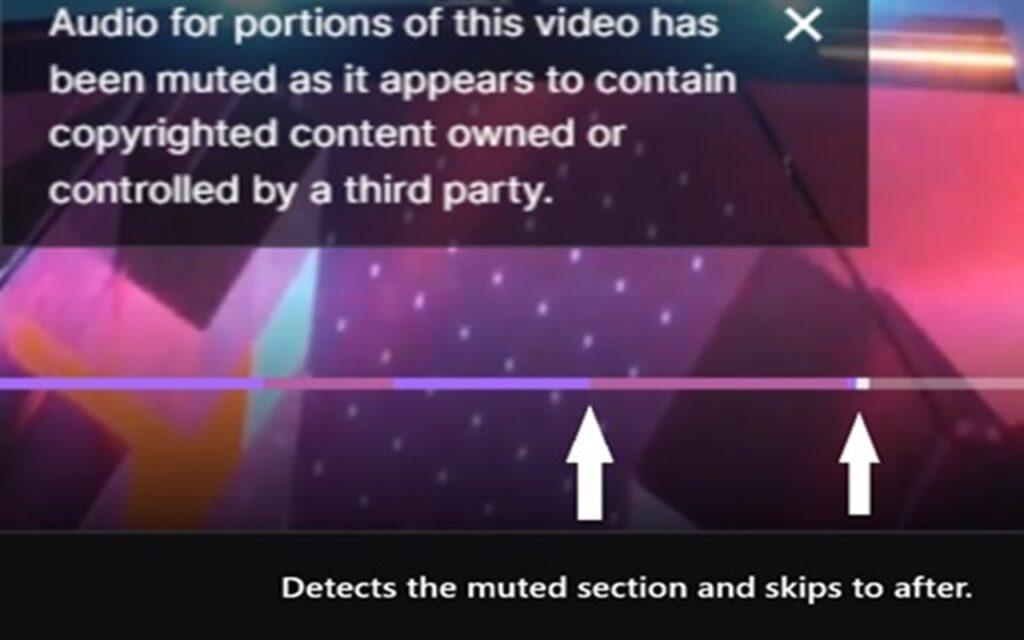
Regional mute restrictions versus global video blocks
Music licensing contracts are negotiated on a country-by-country basis. Consequently, a copyright claim might only enforce a regional mute or regional block. For example, a track licensed for North American broadcasts might trigger an automated block for viewers accessing your VOD from Europe or Asia. If your audience is global, leaving a regionally blocked VOD active hurts your channel analytics, making it wiser to edit out the claimed segment entirely.
A simple decision guide for editing claimed audio segments
To determine whether you should use built-in browser tools to mute a track, trim a clip, or leave the audio alone, use this simple decision guide based on your voice commentary overlap:
| Claim policy label | Audio overlap situation | Recommended editing action | Trade-off on final audio quality |
| Monetize / Revenue Share | Background music plays, but voice is clear. | Keep audio intact. Share ad revenue with the rights holder. | Zero editing needed; retains original voice commentary and game sound. |
| Mute / Region Block | Music plays during a break; no spoken voice. | Use “Mute Audio” tool on the timeline. | Replaces music with silence; no lost dialogue since no one was speaking. |
| Block / Strike Threat | Music overlaps with important streamer voice/gameplay. | Use “Trim Segment” tool to cut the entire scene. | Removes video footage, but 100% eliminates copyright strikes and saves the VOD. |
VOD editor tools and quality risks after saving edits
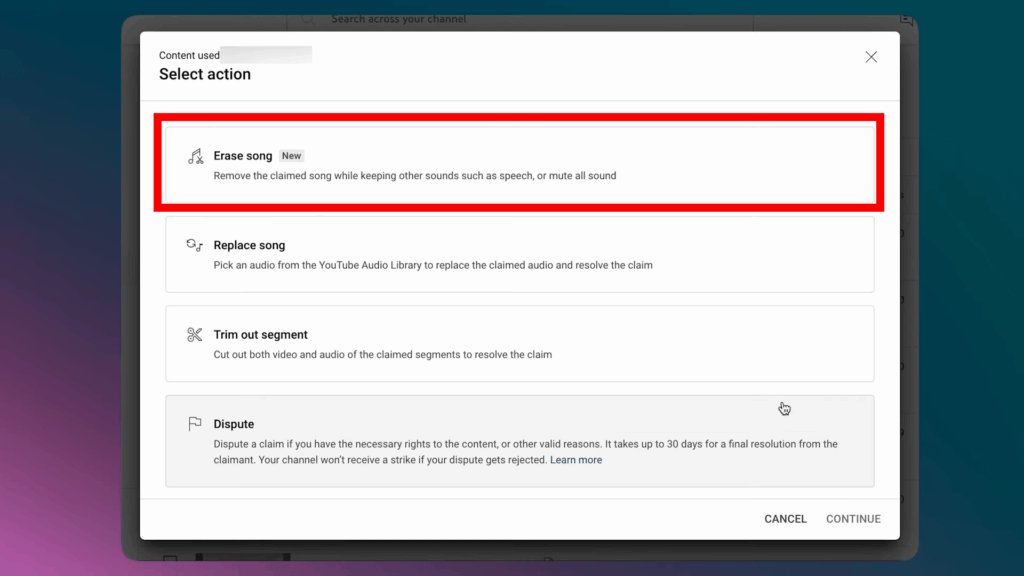
Most major streaming platforms provide basic, in-browser timeline editing tools inside their creator dashboards (such as Twitch Video Producer or YouTube Studio). While convenient, using these post-stream editing tools carries inherent quality risks.
Audio gaps and broken dialogue after muting background music
The most common mistake streamers make is applying an automated “Mute Song Only” edit to a section where background music played while they were actively speaking.
Browser-based muting tools are not magic multi-track isolators. They attempt to frequency-filter the music out of a single, flattened audio track. When the algorithm cuts the music frequencies, it inevitably strips out your spoken voice frequencies as well. The resulting VOD features jarring, broken dialogue and awkward, silent dead-air gaps that ruin the viewing experience for your audience.
Residual copyright claims from newly updated music databases
Editing a VOD once does not guarantee it remains safe forever. Music publishing houses continuously update their digital fingerprint databases. A song that passed undetected on the night of your live stream might be added to the automated detection database three months later, triggering a new retroactive claim on an old VOD.
For high-value streams, relying solely on post-stream browser editing is a reactive, imperfect solution.
Proactive prevention setup in OBS Studio to isolate music tracks
The ultimate professional solution to copyrighted music claims is preventing background music from ever being recorded into your VOD file in the first place. This is achieved through multi-track audio routing inside OBS Studio.
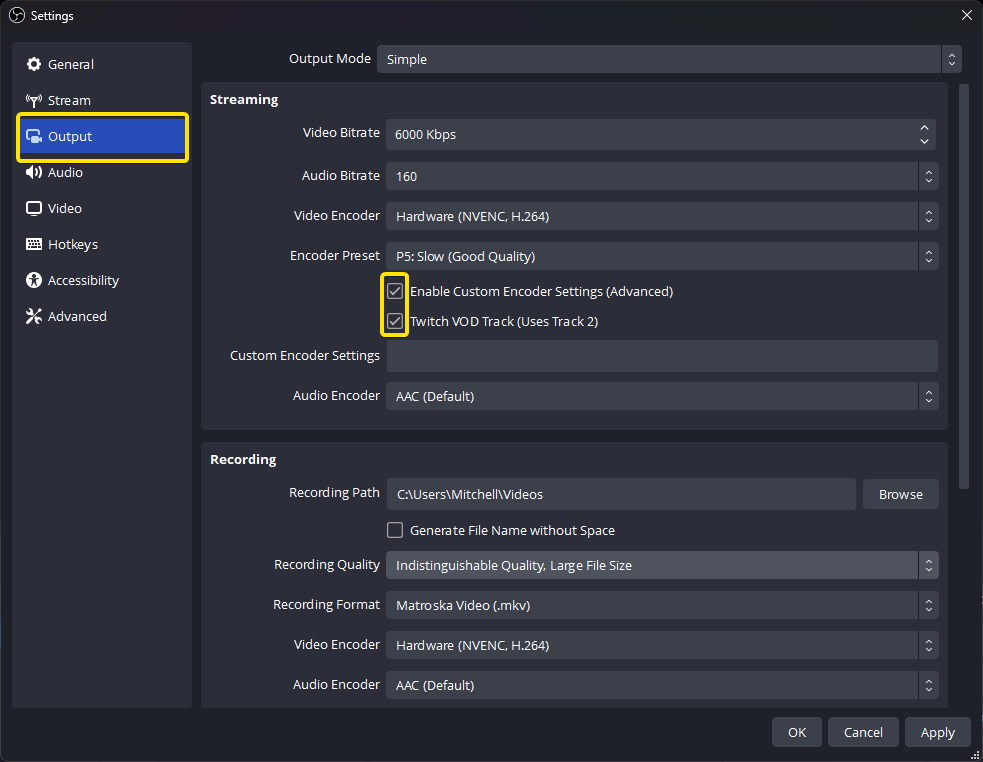
Using Twitch VOD Track in OBS Studio settings
Twitch features a native protocol designed specifically for this problem: the Twitch VOD Track. By configuring this setting inside OBS Studio, you can broadcast music to your live viewers while sending a completely music-free audio mix to your saved VOD replay.
To set up proactive music isolation in OBS Studio:
- Open OBS Studio Settings > Output and set Output Mode to Advanced.
- Enable the Twitch VOD Track checkbox and assign it to Track 2. Set your standard live stream audio to Track 1.
- Open the Edit > Advanced Audio Properties window.
- Check Track 1 for all audio sources (Microphone, Game Audio, Spotify/Discord) so live viewers hear everything.
- Check Track 2 for your Microphone and Game Audio, but uncheck Track 2 for Spotify/Discord.
When you go live, your live audience hears Track 1 (complete with background music). When Twitch saves the broadcast as a VOD, it records exclusively from Track 2. Your saved VOD contains pristine game audio and crystal-clear voice commentary with zero background music, completely eliminating VOD claims forever.


